Make It Move
Turn frozen shapes into living animation — nudge a position a tiny bit every frame, give it speed, and make a ball bounce off the walls like a real arcade game.
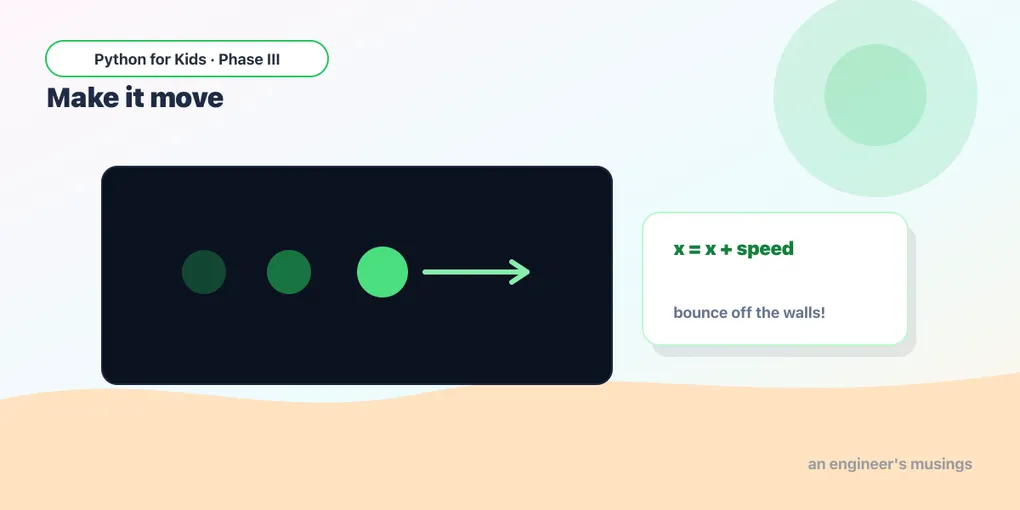
Your robot was great — but it just sat there. A game is alive because things move. And the secret to movement is sneaky: nothing actually slides across the screen. You redraw the shape a tiny bit further over, 60 times a second, and your eyes do the rest.
Remember the game loop — draw, show, repeat? Today we change the picture between each repeat.
The trick: move a little, every frame
Here’s the whole idea. Keep the ball’s position in a variable called x. Each time through the loop, add a little to x, then draw the ball at the new spot:
Runs on Skulpt + pygame4skulpt — in your browser, nothing installed.
The ball glides to the right! Each frame, x gets 2 bigger, so the ball is drawn 2 pixels further right than last time. Sixty frames a second = smooth motion.
It zooms off the edge and never comes back — we’ll fix that soon.
Try it 🎯
- Make it faster: change
x = x + 2tox = x + 6. Whoosh! - Make it slower: try
x = x + 1. The number you add is the ball’s speed. - Send it down instead of across: change
x = x + 2back, then change it toy = y + 2(and leavexalone). Now it falls.
clock.tick speed suddenly matters
Way back in Lesson 2 you slowed the heartbeat with clock.tick(2) and nothing looked different — because nothing moved. Now it’ll matter a lot. clock.tick(60) means the loop runs 60 times a second, so the ball moves 60 times a second. Slow the heartbeat and the ball moves in big, choppy hops:
Runs on Skulpt + pygame4skulpt — in your browser, nothing installed.
See it lurch? Only 6 frames a second now. Two things control how fast a ball looks: how much you add each frame (speed), and how many frames you get a second (the heartbeat). Real games keep tick(60) steady and just change the speed number.
Bounce off the walls
A ball that flies off and never returns is no fun. Let’s make it bounce. The idea: keep a speed variable, and when the ball hits an edge, flip the speed’s sign so it heads back the other way.
If speed is 4, the ball moves right. Flip it to -4 and it moves left. Hit the left wall? Flip back to 4. That’s a bounce.
Runs on Skulpt + pygame4skulpt — in your browser, nothing installed.
A proper bouncing ball, ping-ponging around the box forever. Read the bounce lines slowly:
if x > 400 - r or x < r:— “if the ball’s right edge passed the right wall, OR its left edge passed the left wall…”speed_x = -speed_x— “…turn it around.” The minus sign flips the direction.- Same idea for
ywith the top and bottom.
We use r (the radius) so the ball bounces when its edge touches the wall, not its center.
Your mission 🚀
- Make it bounce faster: change
speed_x = 4tospeed_x = 7. Speedy! - Make it move straight up and down: set
speed_x = 0. Now it only bounces top-to-bottom. - Bigger ball: change
r = 20tor = 40. Notice it still bounces right at the walls — because the bounce check usesr. Magic!
Fix the bug 🐞
This ball is supposed to bounce, but it gets stuck quivering at the right wall instead. Run it, watch the bug, then see if you can spot why:
Runs on Skulpt + pygame4skulpt — in your browser, nothing installed.
Spot it? When the ball hits the right wall, the code sets speed_x = 4 — but 4 is still moving right! It never turns around. The fix: it should be speed_x = -speed_x (or speed_x = -4) to flip direction. Change that one line and the bug is squashed.
What you learned today
- Movement is an illusion: change a position variable a little, every frame, and redraw.
- The number you add is the speed.
clock.tick(60)keeps the heartbeat steady — now you can see why it matters. - To bounce, flip the speed’s sign (
speed = -speed) when the ball reaches an edge — and check against the radius so it bounces at its edge.
Your ball moves all by itself. Next time, you take the wheel: we’ll catch keyboard presses and steer a player around the screen with the arrow keys.
Next: You’re in Control 🎮
Comments