You're in Control
Grab the controls — catch arrow-key presses with KEYDOWN events, steer a player around the screen, and keep it from wandering off the edge.
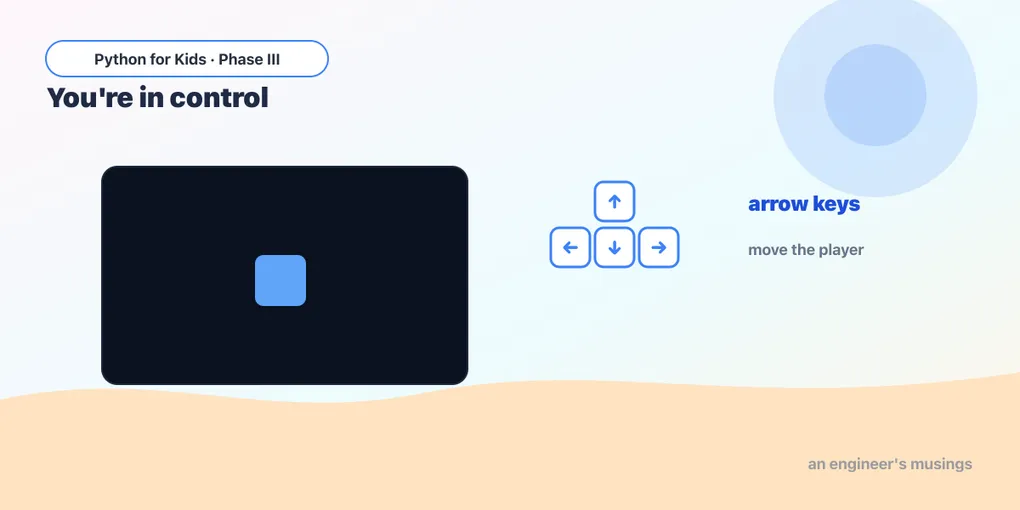
So far the computer’s been doing all the moving. Today you take over. We’ll listen for the arrow keys and move a player wherever you point — left, right, up, down. This is the moment a program becomes a game.
(Playing on a tablet? The little arrow buttons under the game window do exactly the same thing as the keyboard. Tap away.)
Listening for a key
Remember the for event loop that watches for the window closing? Key presses show up there too. When you press a key, pygame fires a KEYDOWN event, and tells you which key:
Runs on Skulpt + pygame4skulpt — in your browser, nothing installed.
Click the game window first, then tap the arrow keys (or the on-screen buttons). The message changes to tell you which one you hit. Each arrow has a name pygame knows: pg.K_LEFT, pg.K_RIGHT, pg.K_UP, pg.K_DOWN.
Try it 🎯
- Add the space bar: inside the KEYDOWN block, add
if e.key == pg.K_SPACE:thenmessage = "JUMP!"on the next line (indented). Tap space. - Change a message to anything you like —
"To the moon!"for UP, maybe.
Steering a player
Now let’s move something. We keep the player’s position in x and y, and change it when an arrow is pressed. Right adds to x, left subtracts; down adds to y, up subtracts (remember — y grows down!).
To make it glide smoothly while you hold a key, add one magic line right after pg.init():
pg.key.set_repeat(50, 25) — “if a key is held down, keep firing KEYDOWN events.” Without it, you’d have to tap-tap-tap.
Runs on Skulpt + pygame4skulpt — in your browser, nothing installed.
Click the window and steer the green dot around with the arrows. You’re controlling it now! Each press nudges x or y by step (8 pixels). Hold a key and set_repeat keeps it gliding.
Try it 🎯
- Make the player zippier: change
step = 8tostep = 16. - Make it a square instead: swap the
circleline forpg.draw.rect(screen, (80, 220, 130), (x, y, 30, 30)). - Try holding two keys — does it go diagonally? (Tap one, then the other, quickly.)
Keep the player on screen
Did you notice you can drive the player right off the edge and lose it? Let’s build a fence. After we move, we clamp the position so it can’t go past the walls — using min and max:
Runs on Skulpt + pygame4skulpt — in your browser, nothing installed.
Now drive into a wall — the player stops instead of escaping. Read one of the fence lines: if x < r: x = r means “if the player tried to go further left than its own radius, pin it back at the edge.” One check per wall: left, right, top, bottom.
Your mission 🚀
Build a driving game:
- Make the player a car-ish rectangle, and pick your favorite color.
- Add a goal — draw a small circle in one corner that doesn’t move, like
pg.draw.circle(screen, (255, 80, 80), (360, 40), 12). Can you steer your player to touch it? - Make the walls smaller by clamping to
(100, 100)–(300, 200)instead — a tiny arena. Tinker with the numbers!
What you learned today
- A key press is a KEYDOWN event, and
e.keytells you which key (pg.K_LEFT,pg.K_RIGHT,pg.K_UP,pg.K_DOWN,pg.K_SPACE). - Move the player by changing
xoryon each press — andpg.key.set_repeat(50, 25)makes holding a key glide smoothly. - Clamp the position with
ifchecks so the player can’t leave the screen.
You can steer a player and you’ve got a ball that moves on its own. What happens when they touch? Next time: collisions — catching, dodging, and the start of a real score.
Next: Did They Touch? 🎮
Comments