From Nothing to `dbt run` in One Sitting
Install dbt Core, point it at DuckDB, and build your first model — the whole loop, with every command and its real output.
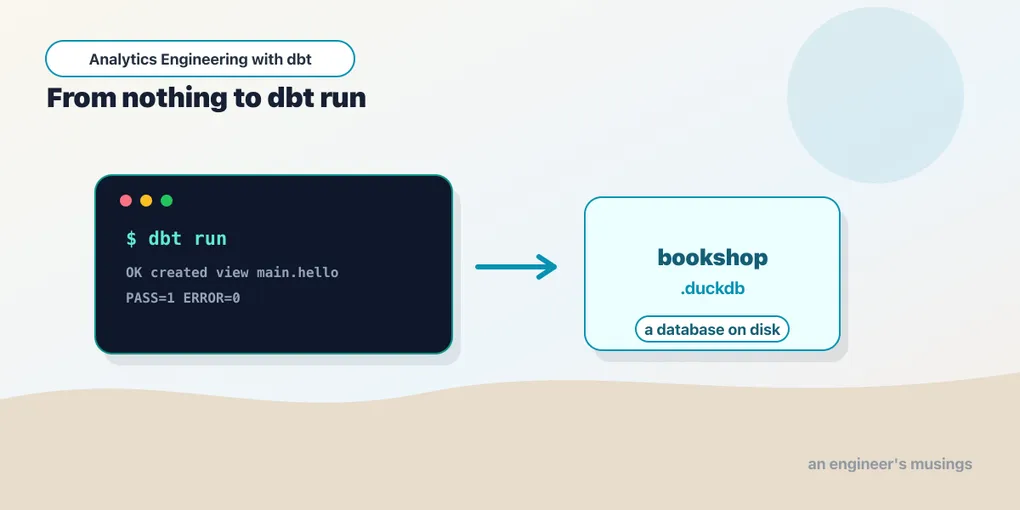
The fastest way to understand dbt is to run it. By the end of this post you’ll have a working project, a database file on disk, and a model you built with one command. No warehouse account, no cloud — just Python and DuckDB. And because “hello world” posts have a habit of skipping the parts you’ll actually get stuck on, we’ll also walk every file the scaffold generates, every line of dbt debug, and the six ways a first run typically fails.
Prefer to clone rather than build up from nothing? The complete project is at engineers-musings/dbt-bookshop — uv sync && uv run dbt build gives you the finished, tested bookshop in about a minute. This post builds the same thing by hand, so you understand every piece rather than inherit it.
Install
dbt Core is a Python package, and each database gets its own adapter. We’re using DuckDB, so we install two things into a fresh virtual environment. We’ll use uv — a fast, drop-in replacement for pip and venv that’s become the default way to manage Python projects:
uv venv
source .venv/bin/activate
uv pip install dbt-core dbt-duckdb
Check it took:
$ dbt --version
Core:
  - installed: 1.11.12
Plugins:
  - duckdb: 1.10.1
That’s the whole toolchain. DuckDB itself comes bundled with the adapter — there’s no separate database server to run, no port to open, nothing to start. Everything in this series is written against these versions.
Two notes on that output before moving on. First, the Core and adapter versions travel loosely together — an adapter declares which Core versions it supports, and pip/uv resolve a compatible pair — but they release independently, which is why the numbers don’t match. Second, in a real project you’ll want that pair pinned rather than floating. The companion repo does it in pyproject.toml:
dependencies = [
    "dbt-duckdb>=1.10,<2.0",
]
Depending on the adapter alone is enough — it pulls in a compatible dbt-core — and the version bound means a teammate’s uv sync six months from now gets the same behavior yours did.
Scaffold a project
dbt init creates a project skeleton. It asks which adapter to use (pick duckdb; with only one installed there’s exactly one choice), and it can also interview you for connection details — we’ll skip that part and write the connection config ourselves, because you should see it once by hand:
$ dbt init bookshop --skip-profile-setupHere’s everything it generates — the full tree, not the abridged version:
bookshop/
├── dbt_project.yml       # project config — the one required file
├── README.md
├── .gitignore            # target/, dbt_packages/, logs/
├── analyses/             # ad-hoc SQL that compiles but never materializes
├── macros/               # reusable Jinja functions
├── models/               # your SELECT statements — the heart of the project
│   └── example/
│       ├── my_first_dbt_model.sql
│       ├── my_second_dbt_model.sql
│       └── schema.yml
├── seeds/                # CSV files dbt can load as tables
├── snapshots/            # history-tracking configs
└── tests/                # hand-written data assertions
Most of those folders start empty — placeholders for chapters ahead. The quick tour, with a pointer to where each earns its chapter:
models/is where you’ll live. The scaffold ships anexample/folder with two toy models and aschema.ymlof tests on them — worth a skim to see the shapes, then delete the folder; we’re building our own.seeds/holds small CSVs dbt loads into the database (sources and seeds).macros/holds reusable Jinja functions — SQL that writes SQL (Jinja and macros).snapshots/tracks how rows change over time (snapshots).tests/is for hand-written, one-off assertions (testing).analyses/is for SQL you want compiled but never built — one-off investigations that deserve version control (project structure covers what belongs there).
A few things the scaffold doesn’t show yet, because they appear on first use: target/ (compiled SQL and artifacts — every run writes here), dbt_packages/ (installed packages), logs/ (a debug log per invocation), and .user.yml (an anonymous ID dbt generates for usage statistics — you can turn the phoning-home off, more below). The generated .gitignore already excludes the first three. For a DuckDB project, extend it yourself:
target/
dbt_packages/
logs/
*.duckdb
*.duckdb.wal
.venv/
.user.yml
The database file is a build artifact — anyone can regenerate it with one command, so it has no business in git, and it gets large.
dbt_project.yml, the whole file
dbt_project.yml is the project’s identity — the file that makes a directory be a dbt project. The scaffold’s version is mostly comments; here’s the real one from our bookshop, which is only slightly longer, annotated line by line:
name: 'bookshop'          # project name: lowercase + underscores; used in ref() paths
version: '1.0.0'          # your project's version — informational, yours to bump
config-version: 2         # the format version of THIS file — leave it at 2

profile: 'bookshop'       # which connection profile to use — see next section

model-paths: ["models"]   # where dbt looks for each resource type
seed-paths: ["seeds"]
snapshot-paths: ["snapshots"]
macro-paths: ["macros"]
test-paths: ["tests"]
analysis-paths: ["analyses"]

target-path: "target"     # where compiled SQL and artifacts land
clean-targets:            # what `dbt clean` deletes
  - "target"
  - "dbt_packages"

models:
  bookshop:
    staging:
      +materialized: view
    intermediate:
      +materialized: view
    marts:
      +materialized: table
The models: block deserves a careful read because its shape confuses everyone once. The keys mirror your folder structure: bookshop is the project name, staging/intermediate/marts are folders under models/. Config cascades down that tree — anything under models/staging/ becomes a view, anything under models/marts/ a table — and the + prefix is what distinguishes “this is a setting” from “this is a subfolder named materialized”. More-specific settings win: a config set inside an individual model file beats a folder-level setting here, which beats a project-wide one. We’ll unpack materializations properly in their own chapter; for now the takeaway is that this file sets defaults by folder, and folders are how a dbt project expresses policy.
A few keys the scaffold omits that you’ll meet later and may as well recognize now:
require-dbt-version: [">=1.11.0", "<2.0.0"]   # refuse to run on the wrong dbt

vars:                       # project-wide variables, readable via var()
  start_date: '2025-01-01'

flags:                      # runtime behavior flags
  send_anonymous_usage_stats: false
require-dbt-version turns “works on my machine” into a parse-time error; vars gets a proper treatment in the Jinja chapter; flags is where project-level behavior toggles live — including switching off the anonymous usage stats that .user.yml supports.
Tell dbt how to connect
Your project says what to build. A profile says where — the database connection. Profiles live in a separate file, profiles.yml, and the separation is deliberate: the project is shared code, the profile is your environment. The same committed project runs against your dev database and production purely by swapping profiles.
dbt looks for profiles.yml in this order — first hit wins:
- a
--profiles-dirflag on the command line, - the
DBT_PROFILES_DIRenvironment variable, - the current working directory,
~/.dbt/— the default home.
Options 2 and 4 each own a scenario. ~/.dbt/profiles.yml is the traditional home — one file, outside every repo, holding the profiles for all your projects at once. That makes it the right place for the ones with real credentials, precisely because it lives nowhere near a git add: a Snowflake password in ~/.dbt/ can’t be committed by accident. DBT_PROFILES_DIR is the override for when neither default fits, and it earns its keep in CI — the pipeline writes a throwaway profiles.yml into a scratch directory and exports DBT_PROFILES_DIR=/tmp/dbt-ci so the exact same project code finds it, without a --profiles-dir flag bolted onto every command. Hold the three straight this way: ~/.dbt/ for your machine’s secrets, a project-local file for a committable secret-free profile like our DuckDB one, and DBT_PROFILES_DIR for the environments that build the project with no human present.
For a self-contained local project, option 3 is the nicest: a profiles.yml right next to dbt_project.yml, everything in one folder. That’s what the companion repo does:
bookshop:
  target: dev
  outputs:
    dev:
      type: duckdb
      path: bookshop.duckdb
      threads: 4
Reading it from the top: the outer key (bookshop) is the profile name, and it must match the profile: line in dbt_project.yml — that string is the only link between the two files. outputs holds one or more named targets — think environments — and target: picks the default. A grown-up profile has several:
bookshop:
  target: dev
  outputs:
    dev:
      type: duckdb
      path: bookshop.duckdb
      threads: 4
    prod:
      type: duckdb
      path: /data/warehouse/bookshop.duckdb
      threads: 8
dbt run uses dev; dbt run --target prod (or -t prod) hits production. That one flag is the seed of dbt’s whole environments story — dev/prod schema separation, CI targets, per-developer sandboxes — which gets a full chapter later in the series.
The DuckDB knobs, and what they generalize to
For DuckDB, path is just a file that gets created on first run (use :memory: for a throwaway database that vanishes with the process). threads is dbt’s own parallelism — how many models dbt will build concurrently when the dependency graph allows it. It’s a dbt setting, not a database one, and it exists in every adapter’s profile.
The adapter takes more config when you need it — the ones worth knowing:
    dev:
      type: duckdb
      path: bookshop.duckdb
      threads: 4
      extensions: [httpfs, parquet]     # autoload DuckDB extensions
      settings:
        memory_limit: 4GB               # any DuckDB SET option
      attach:                           # mount other databases read-only or not
        - path: ./reference.duckdb
Now the important part: every adapter’s profile is this same idea with different fields. Here’s what the equivalent Snowflake target looks like — you’ll never need it for this series, but seeing it kills the mystery of “will this transfer”:
    prod:
      type: snowflake
      account: acme-xy12345
      user: sathya
      password: "{{ env_var('SNOWFLAKE_PASSWORD') }}"
      role: transformer
      database: analytics
      warehouse: transforming
      schema: dbt_prod
      threads: 8
Same profile/target/outputs structure, same threads, plus the warehouse’s own vocabulary: an account locator, a role, a named compute warehouse, and a database/schema pair telling dbt where to build. Which brings up the rule that env_var() call is demonstrating: secrets never go in a committed profiles.yml. Keep the file in ~/.dbt/ out of the repo, or commit a project-local one that reads every credential from the environment — env_var('NAME') fails loudly if the variable is unset, and env_var('NAME', 'fallback') gives a default. Our DuckDB profile is safe to commit only because it contains a relative file path and nothing else.
dbt debug, line by line
Confirm the wiring is sound before building anything:
$ dbt debug
dbt version: 1.11.12
python version: 3.13.5
python path: /Users/you/bookshop/.venv/bin/python
os info: macOS-15.7.4-x86_64-i386-64bit-Mach-O
Using profiles dir at /Users/you/bookshop
Using profiles.yml file at /Users/you/bookshop/profiles.yml
Using dbt_project.yml file at /Users/you/bookshop/dbt_project.yml
adapter type: duckdb
adapter version: 1.10.1
Configuration:
  profiles.yml file [OK found and valid]
  dbt_project.yml file [OK found and valid]
Required dependencies:
 - git [OK found]
Connection:
  database: bookshop
  schema: main
  path: bookshop.duckdb
  ...
Registered adapter: duckdb=1.10.1
  Connection test: [OK connection ok]

All checks passed!
This output is a checklist of everything that can be miswired, in the order dbt resolves it — which makes it the first command to run when anything is confused:
- The version block tells you which Python is in play. If
python pathisn’t your project’s.venv, you’re running some other install of dbt — a classic source of “but I just upgraded it” confusion. Using profiles dir at …shows which of the four lookup locations won. If dbt is reading a~/.dbt/profiles.ymlyou forgot existed instead of your project-local file, this line is where you catch it.- The Configuration checks validate both YAML files — a bad indent or an unknown key fails here, before any connection is attempted.
- The Connection block echoes the resolved target: for DuckDB the database name (derived from the file name), the default schema (
main), and every adapter setting. On a warehouse adapter this is where you’d confirm the account, role, and warehouse are what you meant. Connection testactually connects. Everything above it can pass while this fails — wrong password, network, a dead warehouse — so a green here means you are genuinely ready to build.
Two flags worth knowing: dbt debug --config-dir prints the default home and stops, without connecting —
$ dbt debug --config-dir
To view your profiles.yml file, run:
open /Users/you/.dbt
— which is exactly what you want when you’ve lost track of where profiles are supposed to go (note it reports ~/.dbt/, not whichever location actually won this run — the full dbt debug output above is the one that tells you that). And dbt debug --connection skips the project checks to test the connection alone.
Your first model
A model is a .sql file with a SELECT. Create models/hello.sql:
select 1 as id, 'hello dbt' as messageBuild it:
$ dbt run
1 of 1 START sql view model main.hello ......... [RUN]
1 of 1 OK created sql view model main.hello .... [OK in 0.11s]
Completed successfully
Done. PASS=1 WARN=0 ERROR=0 SKIP=0 NO-OP=0 TOTAL=1
dbt read your SELECT, wrapped it in create view main.hello as (...), and ran it against bookshop.duckdb. That file now exists on disk with a hello view in it. You wrote a query; dbt handled the DDL, the naming, and the connection.
You can prove it with the DuckDB CLI or any client:
select * from 'bookshop.duckdb'.main.hello;
-- 1 | hello dbt
What just happened: a tour of target/
That one command left evidence behind, and learning to read it now will save you hours later. Look inside target/:
target/
├── compiled/bookshop/models/hello.sql   # your SQL, Jinja rendered away
├── run/bookshop/models/hello.sql        # the SQL dbt actually executed
├── manifest.json                        # the entire project as one JSON graph
├── run_results.json                     # what ran, status, timing
├── graph.gpickle                        # the DAG, pickled
└── partial_parse.msgpack                # parse cache for fast restarts
The pair to internalize is compiled/ versus run/. For hello.sql they’re nearly identical, but the distinction matters from the next chapter on: compiled/ holds your model with all templating resolved — a pure SELECT you can paste into any SQL client — while run/ holds that same query wrapped in the DDL the materialization chose:
-- target/run/bookshop/models/hello.sql
create view "bookshop"."main"."hello" as (
    select 1 as id, 'hello dbt' as message
);
When a model misbehaves, target/compiled/ is where you go to see what dbt really asked the database — it is the single most useful debugging habit in dbt.
The two JSON files are dbt’s artifacts: manifest.json describes every resource and dependency in the project (CI tooling and orchestrators are built on it), and run_results.json records the outcome and timing of each node in the last invocation. And partial_parse.msgpack is why your second dbt run starts faster than your first — dbt caches the parsed project and re-reads only files that changed. On the rare occasion the cache misbehaves after big config changes, dbt run --no-partial-parse forces a full re-read.
dbt clean deletes target/ and dbt_packages/ (the clean-targets list from dbt_project.yml) for a truly fresh start. Note what it doesn’t touch: your database. Cleaning artifacts never drops built tables.
The command family
You’ve now seen dbt run end to end, which makes this the right moment to place its siblings — they’re all slices of the same pipeline:
dbt parsereads the project and builds the manifest. No SQL runs. It’s the fastest possible “is my project valid” check.dbt compileparses, then renders every model totarget/compiled/. It needs a working connection (some templating asks the database questions) but builds nothing.dbt runcompiles, then executes each model’s DDL in dependency order.dbt builddoes whatrundoes plus seeds, snapshots, and tests, interleaved in DAG order — a model’s tests run right after it builds, and downstream models are skipped if they fail. This is the command production schedules run.dbt show -s hellocompiles a model, executes it with alimit 5, and prints the rows — a preview without materializing anything, and without leaving the terminal.
When the first run fails
Six failures account for nearly every broken first session. All of these are real — each was reproduced while writing this post — so the messages below are what you’ll actually see.
1. dbt can’t find a profile.
Runtime Error
  Could not run dbt
  dbt looked for a profiles.yml file in /Users/you/.dbt/profiles.yml, but did
  not find one.
You’re either in the wrong directory (dbt only checks the current directory before falling back to ~/.dbt/) or the file doesn’t exist yet. dbt debug --config-dir tells you where it’s looking.
2. The profile exists but the name doesn’t match. If profile: 'bookshop' in dbt_project.yml doesn’t exactly match the top-level key in profiles.yml, dbt reports the profile it wanted and lists the ones it found. It’s a string comparison — a stray space or case difference is enough.
3. The DuckDB file is locked.
IO Error: Could not set lock on file "…/bookshop.duckdb": Conflicting lock
is held in … (PID 52707) by user you.
DuckDB allows one writing process at a time. If a DuckDB CLI, a notebook kernel, or a DBeaver tab has the file open, dbt run can’t. Close the other connection (the error helpfully names the PID). This is purely a local-file quirk — warehouse adapters don’t have it — but it will bite you at least once in this series, usually with a forgotten notebook.
4. Two models share a name.
  Since these resources have the same name, dbt will be unable to find the
  correct resource when looking for ref("orders").
  To fix this, change the name of one of these resources:
  - model.bookshop.orders (models/tmp/orders.sql)
  - model.bookshop.orders (models/marts/orders.sql)
Model names are project-wide, not per-folder — ref('orders') has to mean exactly one thing. Folders organize; they don’t namespace.
5. dbt: command not found. The virtual environment isn’t active in this shell. Either source .venv/bin/activate again, or sidestep activation entirely with uv run dbt …, which the companion repo’s instructions use — it always resolves to the project’s environment.
6. The adapter isn’t installed. dbt Core and the DuckDB adapter are two separate packages, and it’s easy to install dbt-core first and assume that’s the whole thing. If it is, dbt parses your project fine and then fails the instant a command needs the connection — dbt debug, dbt run, even dbt init when it validates the profile:
Runtime Error
  Could not find adapter type duckdb!
The fix is the second half of the install step, uv pip install dbt-duckdb. The quick confirmation is dbt --version: if the Plugins: block is empty, no adapter is installed, and every type: duckdb line in your profile points at nothing.
The loop you’ll live in
That’s the entire inner loop of working in dbt:
- Write or edit a
.sqlmodel. dbt runto build it.- Query the result (or
dbt show -s helloto preview it without leaving the terminal).
Everything else in this series — refs, tests, materializations, snapshots — hangs off this loop. A few commands worth knowing now:
dbt runbuilds your models.dbt run -s hellobuilds just one (the-sis for select).dbt buildruns models and their tests together — the command you’ll actually use most.dbt cleandeletes the compiled artifacts when you want a fresh start.
Final thoughts
Notice what you never did: you never wrote CREATE VIEW, never named a schema by hand, never told dbt the order to do things. You wrote a SELECT and ran one command. That gap — between the SQL you care about and the plumbing you don’t — is the entire value proposition, and it only widens as the project grows.
And notice what you now know that most tutorials skip: where profiles live and how they’re found, what every scaffolded folder is for, what target/ contains, and what the five common failures look like. None of it was hard; all of it is the difference between debugging in seconds and flailing for an hour.
Right now hello.sql stands alone. The moment models start referring to each other is the moment dbt earns its keep.
Next: ref() Is the Whole Trick
Comments