Your First DataWeave Script
Start with a script whose entire result you can see before running it.
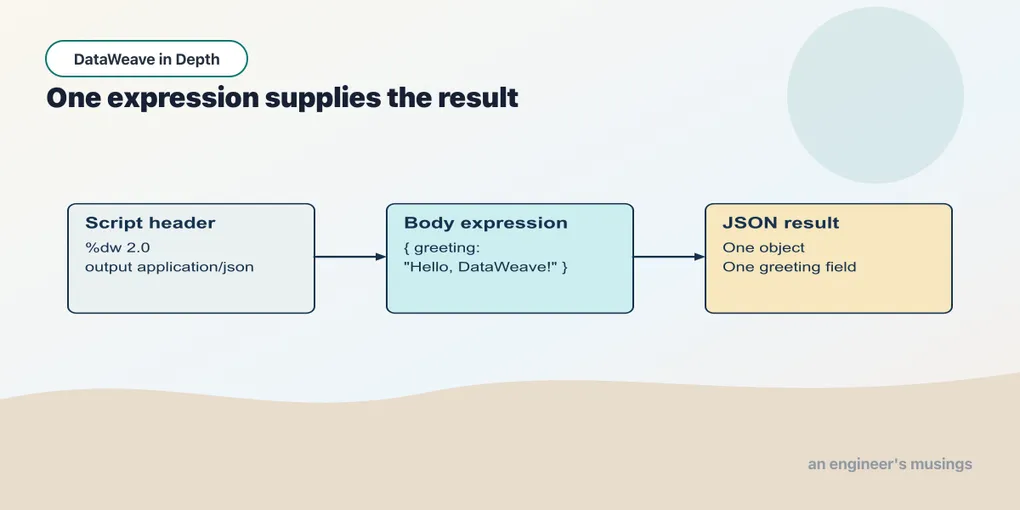
Start with a script whose entire result you can see before running it. Open Example 1 — Hello from DataWeave in the companion Runner. The introduction explains how to start the Runner; keep its script and result panes visible together.
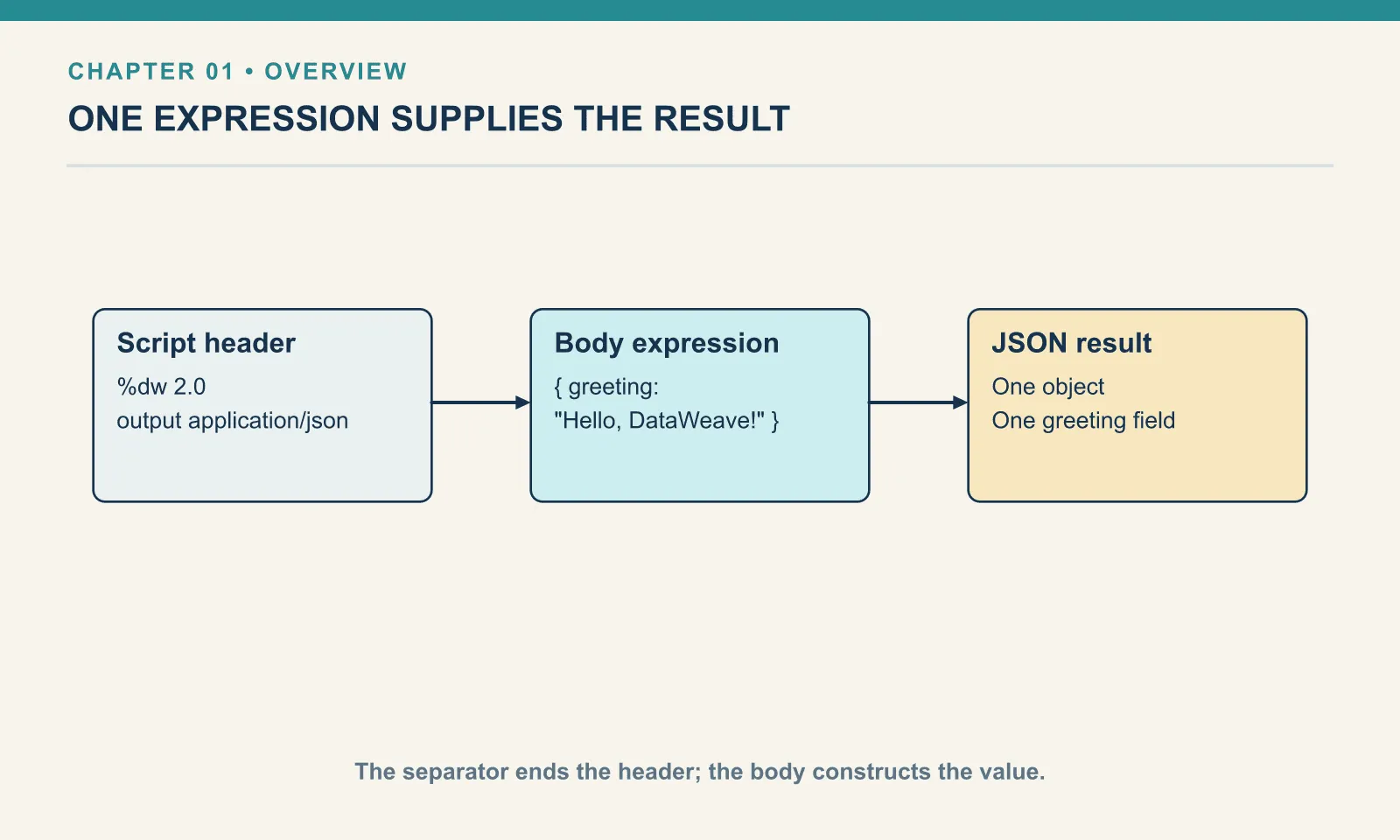
Hello, then an order
Example 1 — Hello from DataWeave.
%dw 2.0
output application/json
---
{ greeting: "Hello, DataWeave!" }
Result:
{
  "greeting": "Hello, DataWeave!"
}
The result has one field, greeting, whose value is text. The braces enclose an object: a collection of named fields. A colon separates a field’s name from its value. Double quotes delimit the text itself.
The first line, %dw 2.0, identifies the language. It does not identify the engine’s release: the companion uses CLI 2.12.0 with runtime 2.12.2. output application/json selects the JSON writer, the component that turns the result into JSON text. The line --- ends the header. Everything below it is the body.
Here the body is the object expression. An expression produces a value when evaluated. This one produces the object that the writer prints. There is no separate instruction to print each field.
Change the greeting to Hello, Dana! and run it again. The input pane is unused: the text comes directly from the script. That makes this a useful first change because there is only one place the new value can have come from.
Example 2 — A fixed order header.
%dw 2.0
output application/json
---
{ orderId: "A-1001", customer: "Dana" }
Result:
{
  "orderId": "A-1001",
  "customer": "Dana"
}
The same body can describe an order header. It now contains two fields, separated by a comma. Their names tell the receiving system what the values mean. The order identifier and customer name are both literals, values written directly into the source.
DataWeave accepts the bare field names orderId and customer here; the JSON writer surrounds them with quotes in the output. That difference belongs to the two syntaxes. The name has not changed.
You can lay the two fields out on separate lines without changing the result. Whitespace makes the source easier to read; braces and commas establish the object structure.
The body supplies one value
Example 3 — Return a single value.
%dw 2.0
output application/json
---
"A-1001"
Result:
"A-1001"An object is not compulsory. This script returns one string, so the JSON result is a quoted string. A valid script has one body expression; that expression decides the result’s shape. A receiver expecting an object would not be satisfied by this string even though both outputs are valid JSON.
Correcting a small mistake
Example 4 — A missing comma.
%dw 2.0
output application/json
---
{ orderId: "A-1001" customer: "Dana" }
Result (expected exit 255):
[ERROR] Error while executing the script:
[ERROR] Invalid input ':', expected `}` or ',' for the object expression. (line 4, column 29):


4| { orderId: "A-1001" customer: "Dana" }
                               ^
Location:
004-a-missing-comma (line: 4, column:29)
The diagnostic points into the object where the parser expected punctuation. Put a comma after "A-1001" and the script becomes Example 2 — A fixed order header again. Read the reported location with the surrounding source: the highlighted position is where the parser could no longer continue, which may be just after the character you omitted.
Try it
Change Example 2 — A fixed order header so the result also contains status: "new". Keep the original two fields. Before running it, say where the second comma belongs.
Show answer
Example 5 — Add an order status.
%dw 2.0
output application/json
---
{ orderId: "A-1001", customer: "Dana", status: "new" }
Result:
{
  "orderId": "A-1001",
  "customer": "Dana",
  "status": "new"
}
The comma after the customer field separates it from status. One object now holds all three fields; the body still consists of one expression.
You can now change the value a script constructs and explain why its output has that shape. Next, the order identifier and customer will come from an input document, so the same script can serve another order.
Comments