Keeping Score
Add a score that climbs every time you catch the target, and learn to draw real words and numbers on the screen with pygame fonts — gluing text together the safe way, with str() and .format().
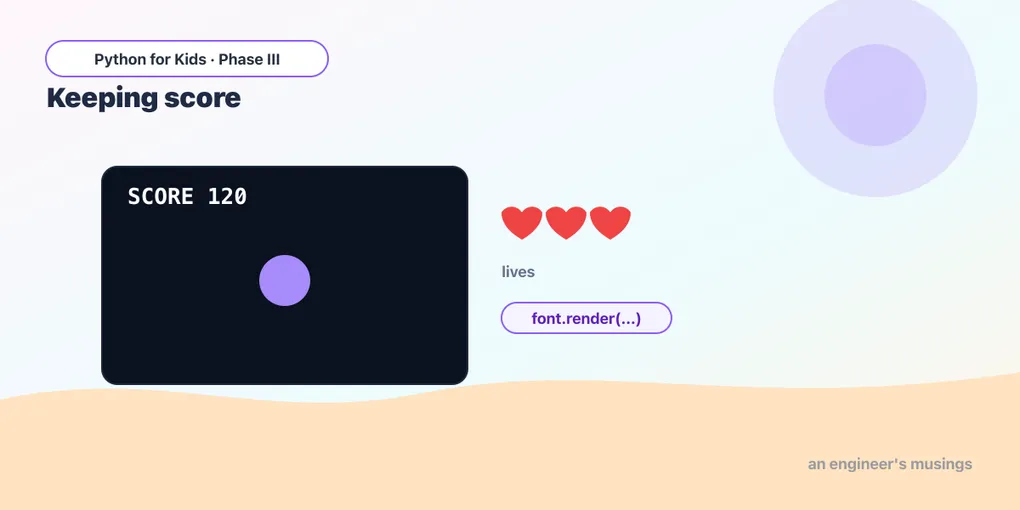
In the last lesson you made a target you can chase and catch — but catching it didn’t count for anything. Every game keeps score: that little number in the corner that climbs as you do well. Today you’ll add one. And to show it, you’ll learn how to draw real words and numbers on the screen, not just shapes.
A score is just a number that goes up
A score is the simplest idea in this whole series: a variable that starts at zero and gets + 1 whenever something good happens.
score = 0Then, the moment the player catches the target:
score = score + 1That’s the whole trick. The hard part isn’t counting — it’s showing the number on screen.
Drawing words on the screen
Shapes are drawn with pg.draw. Text needs a different tool: a font. A font is just a style of lettering. We set one up once, near the top:
font = pg.font.SysFont("console", 20, True)That means “give me the console lettering, size 20, bold (that’s what the True is for).” Then, to actually show some words, we do it in two steps every frame:
picture = font.render("Hello!", True, (255, 255, 255))
screen.blit(picture, (10, 10))font.render(...)turns your words into a little picture of text. TheTruethere asks for smooth edges, and(255, 255, 255)is the color — white.screen.blit(picture, (10, 10))stamps that picture onto the screen at position (10, 10) — near the top-left corner. Blit is just a funny old word that means “stamp this picture here.”
Here’s text on its own:
Runs on Skulpt + pygame4skulpt — in your browser, nothing installed.
Words on the screen! Change "Hello, game!" to your own message and Run again.
Gluing words to numbers — the safe way
Here’s a wrinkle. A score is a number (like 7), but font.render only wants words (text). Try to glue them with +, like "Score: " + score, and Python gets confused — you can’t add words and a number together.
The fix is str(). It turns a number into its text version: str(7) becomes "7". Then you can glue:
"Score: " + str(score)There’s a second neat way using .format(), where you leave a {} as a blank to fill in:
"Score: {}".format(score)Both give you the same words. Use whichever you like.
No f-strings here! You might have seen people write text like
f"Score: {score}"with anfin front. That’s a different way of doing this — and our in-browser Python doesn’t understand it. Always reach forstr(...)or.format()instead.
Catch it, count it, show it
Now let’s bring back the chase-and-catch game from last lesson and add a living, climbing score in the corner:
Runs on Skulpt + pygame4skulpt — in your browser, nothing installed.
Catch the gold square and watch the corner: Score: 1… 2… 3… Every catch climbs the number. Notice the order of the new pieces:
score = 0— set up the score once, before the loop starts.score = score + 1— bump it up, but only inside theifwhere we catch the target.- The two text lines go after the shapes, so the score is stamped on top of everything (remember from lesson 2: later draws land on top).
Try it 🎯
Edit the program above and Run after each change:
- Make each catch worth 10 points: change
score = score + 1toscore = score + 10. - Change the score’s color to gold: in the
font.renderline, swap(255, 255, 255)for(245, 200, 60). - Move the score to the bottom: change its position
(10, 10)to(10, 370).
Your mission 🚀
Add a second line of text that shows a message, like "Catch the gold!". You’ll need a second font.render and a second screen.blit, drawn at a different spot (say (10, 40) so it sits just under the score). Bonus: use .format() for one of your two text lines instead of str(), just to try the other way.
What you learned today
- A score is a variable: start it at
score = 0, thenscore = score + 1when something good happens. - Text needs a font:
pg.font.SysFont("console", 20, True). Thenfont.render(words, True, color)makes a picture, andscreen.blit(picture, (x, y))stamps it on screen. - Numbers aren’t words — glue them with
str(score)or"...{}".format(score). Never f-strings. - Draw text after your shapes so it sits on top.
You’ve got a player, a target, a score, and words on the screen. That’s everything you need to build a real, complete game. Next time we put it all together into your first finished, playable arcade game — with lives, a falling star to catch, and a “Game Over” screen.
Comments