Getting Comfortable in a Notebook
Notebooks work a little differently from the editors you've used. Learn how cells run, how they share memory, and confirm all your Python skills work in Colab.
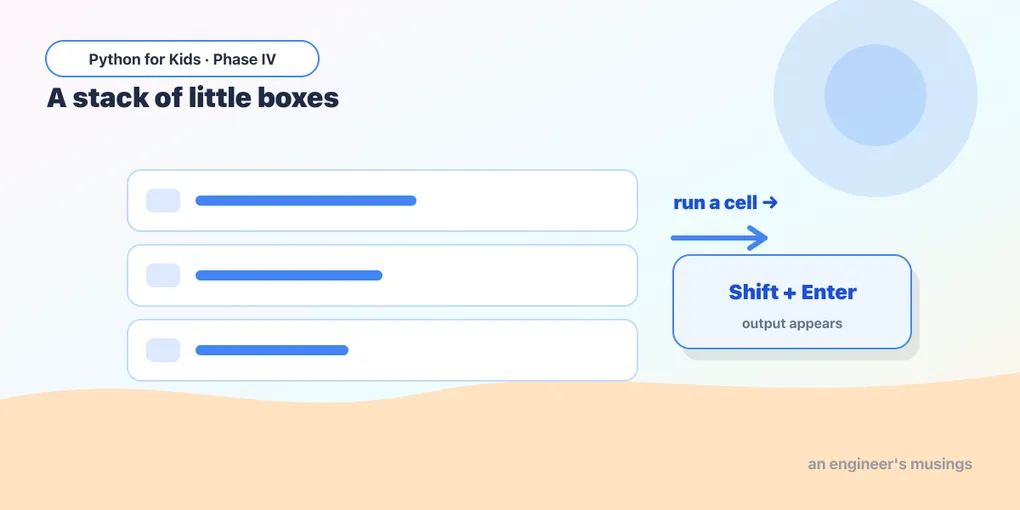
Now that you’re in Colab (or Jupyter), let’s get comfortable. A notebook isn’t one big program — it’s a stack of little boxes called cells that you run one at a time. That’s a new way of working, and once it clicks, it’s wonderful for exploring data.
Open this lesson in Colab💡 How to follow these lessons: read here, then type the code into a cell in your notebook and run it with Shift + Enter. The code blocks below are meant to be copied into Colab, not run on this page.
Cells run one at a time
Each cell holds some code. Run a cell and its output appears right below it. Make a new cell with the + Code button. Try these in two separate cells:
# cell 1
print("This is the first cell.")
# cell 2
print("This is the second cell.")Run cell 1, then cell 2. Each shows its own output. You can re-run any cell as many times as you like.
A handy shortcut: the last line shows itself
In a notebook, the last line of a cell automatically displays its value — no print needed:
2 + 2Run that and you’ll see 4 appear, even without print. It’s a notebook convenience. (We’ll still use print when we want to show several things.)
Cells share memory
This is the big idea. All the cells in a notebook share the same memory, so a variable you make in one cell is available in the next:
# cell 1
name = "Ada"
age = 12
# cell 2 — run this AFTER cell 1
print(name, "is", age, "years old")Cell 2 knows about name and age because cell 1 created them. This lets you build up your work step by step, one cell at a time.
Everything you learned still works
Colab runs real Python, so all your Phase I and II skills are right at home. Type these into cells and run them:
# a loop
for i in range(5):
    print("Step", i)
# a list and a for-each
scores = [90, 85, 100, 70]
total = 0
for s in scores:
total = total + s
print("Average:", total / len(scores))# a function that returns
def double(n):
return n * 2
print(double(21))Look familiar? It’s the same Python — you’ve already learned the language. Phase IV is about pointing it at real data.
Try it 🎯
- In one cell, make a list of your favorite numbers. In a new cell, print how many there are with
len(...). - Write a
greet(name)function in one cell, then call it from another cell.
Watch out: run order matters 🔮
Because cells share memory, the order you run them in matters — not the order they appear on screen. If cell 2 uses a variable from cell 1, you must run cell 1 first. If you ever get a “name is not defined” error, you probably skipped the cell that creates it. (Tip: Runtime → Run all runs every cell from the top.)
Fix the bug 🐞
A friend ran this cell before the cell that made total, and got NameError: name 'total' is not defined. What’s the fix?
print("The total is", total)(They need to run the cell that creates total first — like total = 5 + 3. In notebooks, run cells top to bottom, or use Run all.)
Your mission 🚀
Recreate a small program from Phase II in your notebook, split across a few cells: in one cell make a list of test scores, in the next compute and print the average, and in a third print how many scores are 90 or above. Run them in order.
What you learned today
- A notebook is a stack of cells you run one at a time (Shift + Enter).
- The last line of a cell shows its value automatically.
- Cells share memory — variables carry from one cell to the next — so run order matters.
- All your Python skills work in Colab; now we aim them at data.
Next time, the star of Phase IV arrives: a real dataset about penguins, loaded with a tool called pandas. 🐧
Comments