Your First Game Window
The very first step into game-making: meet pygame, pop open a real game window, paint it, and drop a shape on it — no need to understand every line yet, just make something appear.
Welcome to Code Your Own Games! In Phase I you drew with a turtle, and in Phase II you made programs that talk. Now you’re going to make real video games — a player you move with the keys, things to catch and dodge, a score going up — all in Python, right here on the page. Nothing to install. Press a button, play a game.
We’ll build up to that one step at a time. Today is the smallest first step of all: make a game window appear, and put a shape in it. You won’t understand every line yet — and that is completely fine. Today is about seeing something happen.
What is pygame?
In Phase I, the turtle drew lines for you. Now we switch to a bigger toolbox called pygame — a Python library made for building games. With it you can open a window, paint it, draw shapes wherever you want, and (soon) move them around and react to the keys.
Think of the window as your screen — a blank canvas. Everything in your game gets drawn onto it.
Your first window
Here’s the smallest program that opens a game window with a shape in it. Press ▶ Run (and ■ Stop when you’re done looking):
Runs on Skulpt + pygame4skulpt — in your browser, nothing installed.
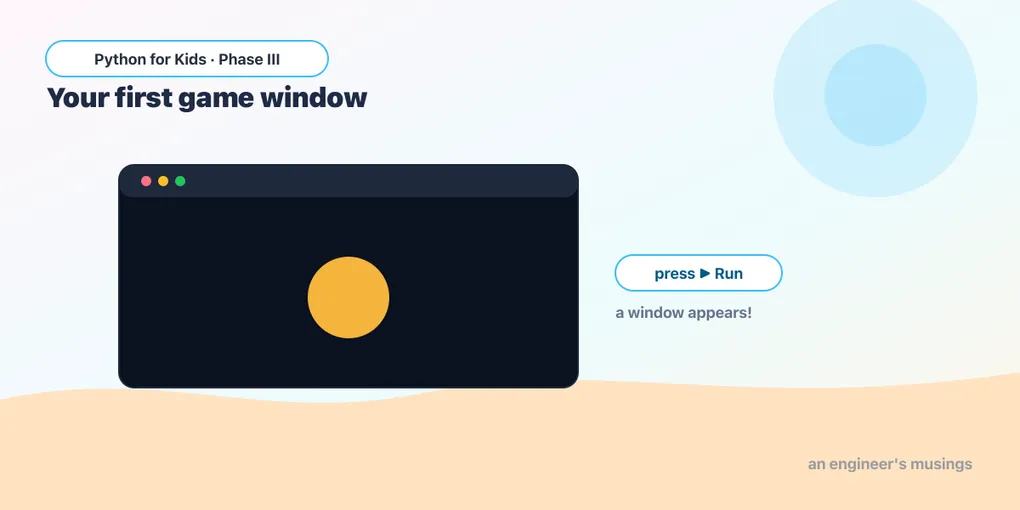
A window popped open — dark blue, with a gold circle in the middle. You just made a game window!
Now, that’s more lines than a turtle program, and most of them probably look mysterious. Don’t worry about them yet. Almost every line here is setup — it opens the window and keeps it on screen — and it’s the same in every game you’ll ever make, so you’ll just copy it. Next lesson we’ll pull it apart and you’ll see exactly how it works (it’s called the game loop). For today, only three lines matter, and they’re the fun ones:
screen = pg.display.set_mode((400, 300))— open a window 400 wide, 300 tall.screenis your canvas.screen.fill((20, 24, 40))— paint the whole window a color. A color is three numbers (red, green, blue) — more on that soon.pg.draw.circle(screen, (245, 180, 60), (200, 150), 40)— draw a circle on the screen: its color, where it goes(200, 150), and how big40.
The rest is just “open the window and keep it there.” Copy it and move on.
Try it 🎯
Change the program and Run after each tweak — you can’t break anything:
- Repaint the background: change
screen.fill((20, 24, 40))toscreen.fill((40, 10, 30)). Different numbers, different color. - Recolor the circle: change its
(245, 180, 60)to(80, 200, 255). Now it’s blue! - Make the window bigger: change
(400, 300)to(600, 400). - Move the circle: change
(200, 150)to(100, 80). Where does it land?
What you learned today
- pygame is a Python library for making games — it opens a window you draw on.
- The window is your screen, your canvas;
screen.fill(...)paints it, andpg.draw.circle(...)puts a shape on it. - Colors are three numbers — (red, green, blue).
- The rest of the program is setup that opens the window — copy it for now; you’ll understand it next time.
You made a real game window appear and put a shape in it. Next lesson, we crack open those mysterious setup lines and meet the game loop — the heartbeat that, very soon, will let things move.
Next: Every Game Has a Heartbeat 🎮
Comments